
How to Set Up a New Visual FoxPro Installation
Bob Fox • July 13, 2022
Updated June 11, 2026
These are my notes from a fresh install of Visual FoxPro 9 on Windows 11. The installer itself is over twenty years old at this point, so there are a couple of spots that trip people up on a modern machine. I'll walk through the whole thing and call those out as we go.
1. Obtain installation media and a license key
MSDN used to be the best way to get a legal copy of Visual FoxPro, but I am not completely sure these days. There may be used copies floating around eBay, but you'd need to check the licensing to see whether or not that is feasible.
You'll want the original installation media (a CD/DVD or an .iso disc image) and your product key.
2. Download the service packs and the MSXML hotfix
Make sure you have both SP1 and SP2 downloaded before you start. These can be downloaded from github.com/VFPX/VFPInstallers.
While you're at it, grab the MSXML 4.0 update (msxml4-KB973688-enu.exe) too. You won't need it
during the install itself, but it fixes an error you'll otherwise hit the first time you launch
VFP — more on that in the last step.
3. Mount the disc or ISO
If installing from disc (CD or DVD), insert the disc and follow the instructions.
If you have an .iso file, you'll need to mount it by right-clicking the file. Windows 11 has a
built-in option for this. Older versions of Windows require a third-party tool such as WinCDEmu
to mount disc images.
4. Run setup and install the prerequisites
When you run setup.exe you should see a dialog with three options: Prerequisites,
Visual FoxPro, and Service Releases.
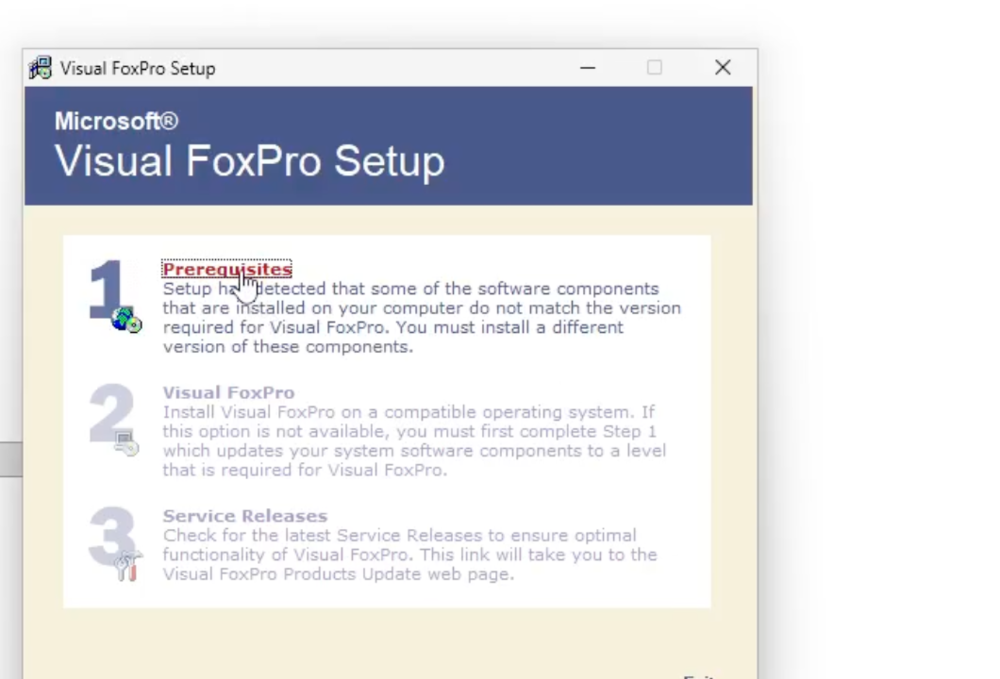
You must install the Prerequisites first. On a modern version of Windows, setup will usually warn you that some of the installed system components don't match the versions Visual FoxPro expects — that's exactly what this step is for, so run it before anything else.
5. Install Visual FoxPro
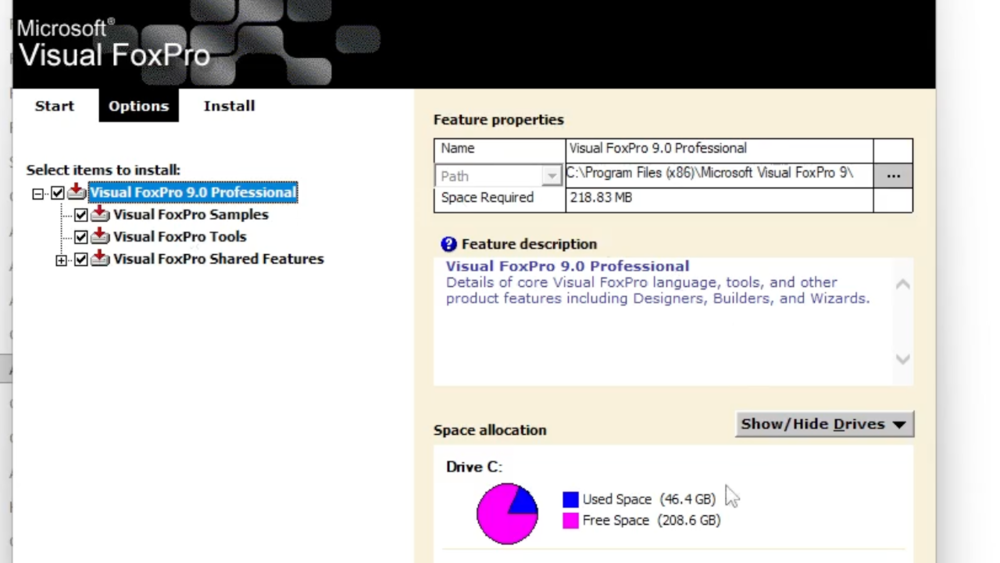
Once the prerequisites are in place, run the Visual FoxPro installation. On the options page you can choose which features to install — the Samples, Tools, and Shared Features are all worth keeping. When you're ready, click Install Now!.
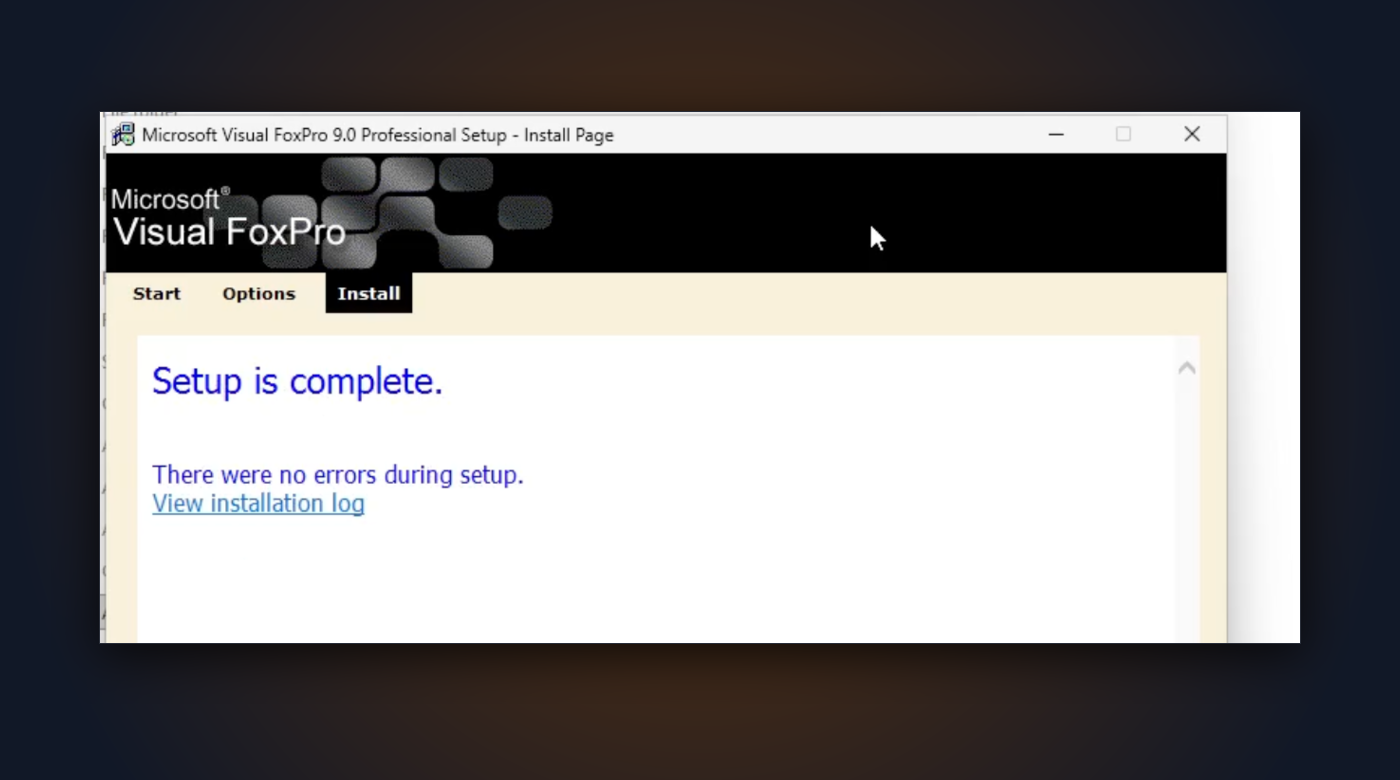
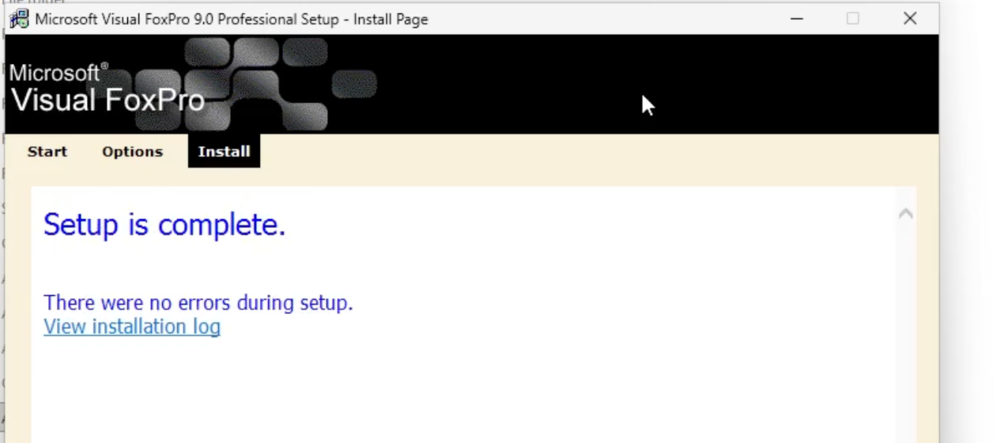
When it finishes you should see a "Setup is complete" page with no errors.
6. Install Service Pack 1, then Service Pack 2
Skip the Service Releases option back in the setup menu. Instead, install SP1 and SP2 yourself by running the executables you downloaded in step 2 — install SP1 first, then SP2.
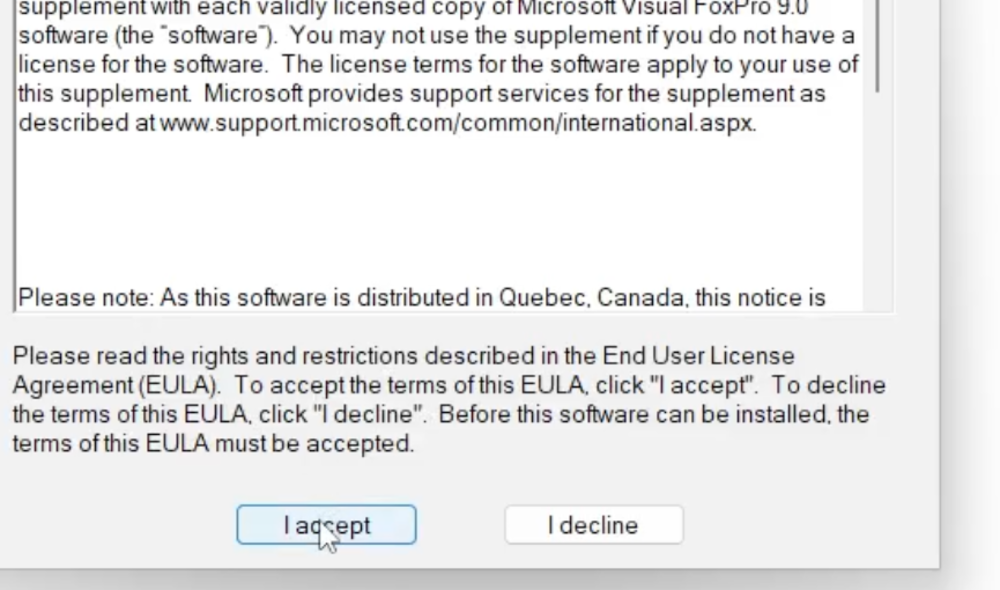
Accept the license agreement when SP1 prompts you:
Then run SP2 and confirm:
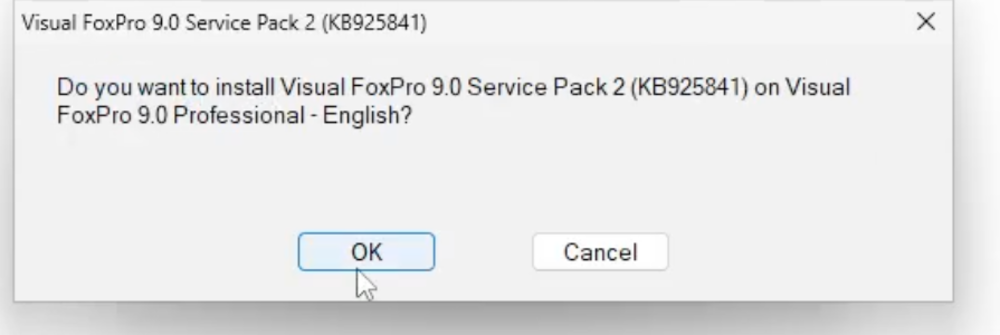
Make sure you install Service Pack 2 and the latest hotfix before running Visual FoxPro 9 for the first time.
7. First launch and the MSXML error
The first time you start VFP 9, the Task Pane Manager may greet you with this:
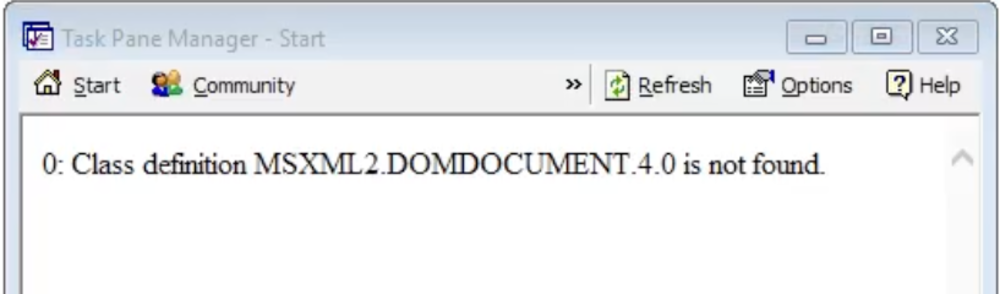
0: Class definition MSXML2.DOMDOCUMENT.4.0 is not found.
The Task Pane Manager relies on MSXML 4.0, which isn't installed by default on a modern version of
Windows. Running the MSXML 4.0 update (msxml4-KB973688-enu.exe) from step 2 provides the missing
component and clears the error — install it before you launch Visual FoxPro 9 for the first time.
If you don't care about the task pane, you can skip MSXML entirely and just stop the pane from opening (see the setting below); the error only appears because the pane is trying to load.
Taming the task pane
Even with MSXML installed, the task pane often sits blank for several seconds — sometimes up to a minute — the first time it loads, so it can look like VFP is unresponsive. That's normal; give it a moment to settle.
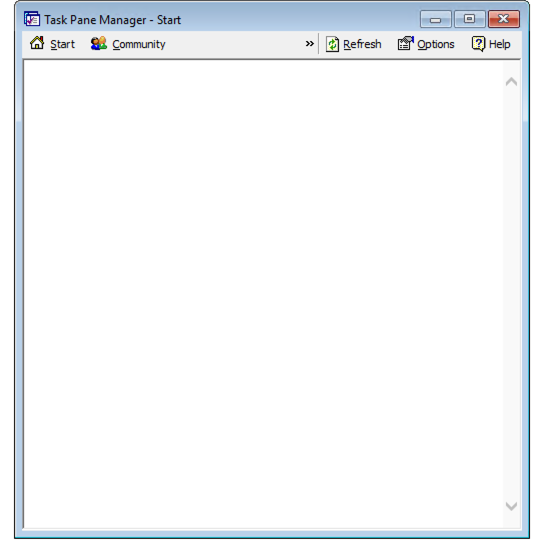
Once it settles, open its settings from the Options menu just below the task pane's title bar and make two changes.
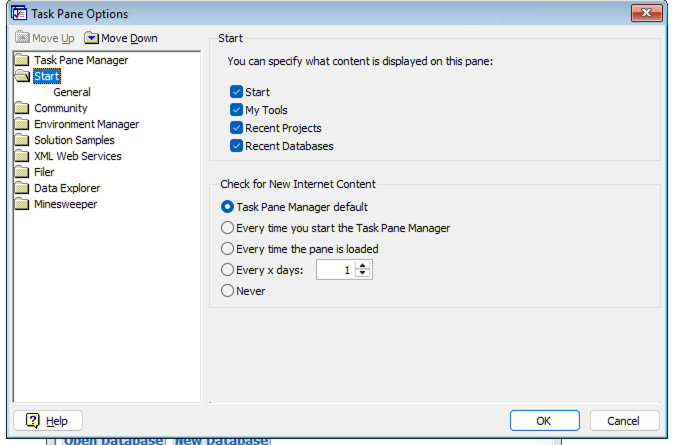
Under Start, set Check for New Internet Content to Never so the pane stops reaching out to the (long-dead) servers every time it loads:
Then under Task Pane Manager, uncheck Open the Task Pane Manager when Visual FoxPro starts so it stays out of your way from now on:
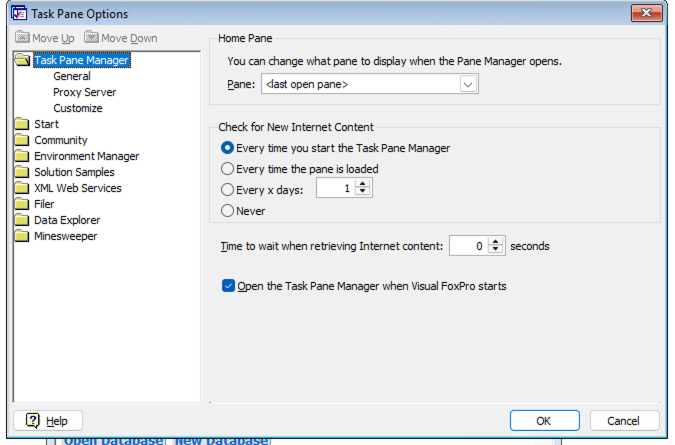
Click OK and you're set — no error, no slow startup, and the pane won't pop up next time.
Next steps
I'll cover these customizations in a future blog post and video:
- Installing Thor
- Creating a startup program (
gofoxgo) to set your environment the way you like it